Wednesday, 7 September 2016

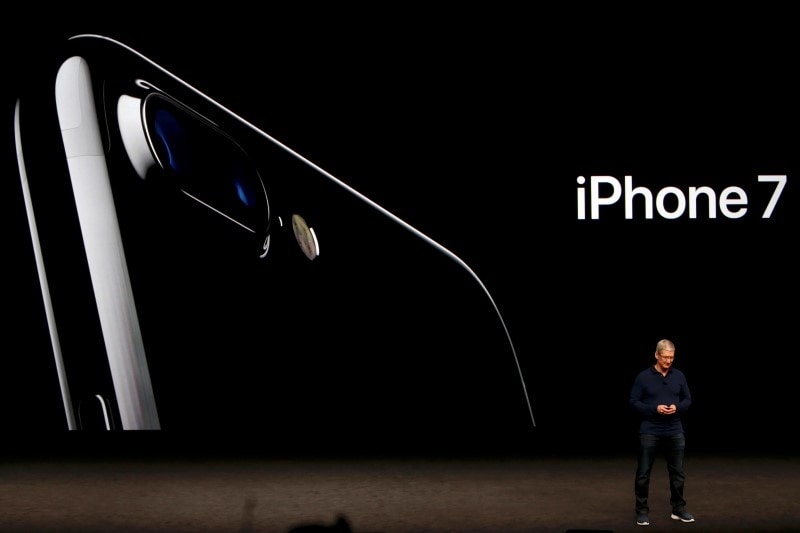
iPhone 7, iPhone 7 Plus Price in India and Launch Date Revealed

iPhone 7, iPhone 7 Plus Price in India and Launch Date Revealed 
iPhone 7, iPhone 7 Plus Price in India and Launch Date Revealed

HIGHLIGHTS

  • New iPhones pack water and dust resistance
  • iPhone 7 Plus come with dual rear cameras
  • Two new colours introduced
In what was perhaps the worst-kept secret of recent times, Apple lifted the wraps off the iPhone 7 and iPhone 7 Plus in San Francisco on Wednesday. While India is not in the first batch of countries that will get the new iPhone models next week, the iPhone and iPhone 7 Plus will launch in India on October 7. Price in India starts at Rs. 60,000 for the iPhone 7, with no word yet on India price of other models.
In the US, the iPhone 7 starts at $649 (approximately Rs. 43,000) for the new 32GB entry-level variant, doing away with the 16GB model, while the iPhone 7 Plus start at $769 (approximately Rs. 51,000) for same 32GB storage. Apple has also doubled the storage variant on other models, with 128GB and 256GB models now rounding up the lineup. Pre-orders open this Friday in select countries shown in the image below and the new iPhone models will ship in these regions on September 13.
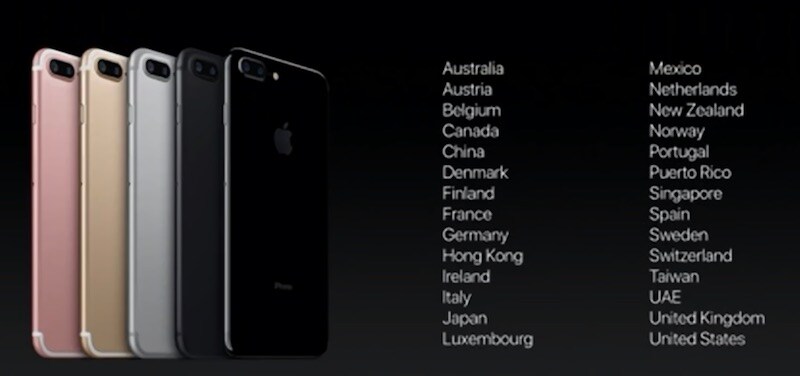


The latest iPhone models comes with a new design, doing away with the antenna lines at the back, and they will be available in two new colours: (matte) black, jet (glossy) black, in addition to gold, silver, and rose gold, seen earlier. The iPhone 7 and iPhone 7 Plus also feature a redesigned home button which is now solid-state and force-sensitive. It uses Taptic vibrations instead of a physical click, just like the trackpad on the latest MacBook and MacBook Pro models. Apple has also added IP67 water and dust resistance, a first for the iPhone series.
There are camera improvements, with the iPhone 7 also getting optical image stabilisation (OIS). There's a new 6-element f/1.8 aperture lens with 12-megapixel sensor and quad-LED with True Tone Flash. A new 7-megapixel front camera is included as well. The newest iPhone models come with a new image processing engine, which, Apple claims, delivers better, faster pictures.

The iPhone 7 Plus packs in the widely rumoured dual rear camera setup - one 56mm telephoto lens and the other wide-angle lens. The bigger iPhone is also capable of 2x optical zoom, with total zoom up to 10x.
The new iPhone models comes with a 25 percent brighter display with a wider colour gamut and improved colour management. The iPhone 7 and iPhone 7 Plus are powered by a new A10 Fusion 64-bit quad core chip, which is 40 percent faster than the A9, and more power efficient, which means the new models have the "best battery life ever" on an iPhone.
The speakers in iPhone 7 and iPhone 7 Plus are stereo - one at the bottom, and one at the top, and twice as loud as their predecessors.
As expected, the iPhone 7 and iPhone 7 Plus also ditch the headphone jack. Apple will use the Lightning port for audio. Each new iPhone model will come with bundled Lightning EarPods, and a Lightning-to-3.5mm audio adapter, so you can use your old headphones.
Apple also introduced new AirPods for wireless audio experience, which will not be bundled with the iPhone models. They pair easily with your Apple devices, thanks to the W1 chip inside new Apple devices that's used for wireless communication. They are rated to delivery 5 hours of battery life, up to 24 hours with the included charging case that is also used for carrying them around.

Display

4.70-inch

Processor

 quad-core

Front Camera

 7-megapixel

Resolution

 750x1334 pixels

RAM


OS

 iOS 10

Storage

32GB

Rear Camera

12-megapixel

Battery capacity


Display

5.50-inch

Processor

 quad-core

Front Camera

 7-megapixel

Resolution

 1080x1920 pixels

RAM


OS

 iOS 10

Storage

32GB

Rear Camera

12-megapixel

Battery capacity


Sunday, 10 July 2016

How to Remove Write Protection From USB Pendrive.

In this era of technology, we all come through gadgets that we could not even imagine few years back. One of them is Pendrive, a very tiny gadget manufactured to store huge amounts of data. Invention of Pendrive revolutionized the way we transferred data. Now we do not need to carry all those fragile CD’s and DVDs with us. Just plug-in Pendrive and you got everything you need. Write protection is a setting that blocks any sort of modification or deletion of a file. But this is an ideal feature to secure data on USB but sometime it malfunctions and we can able to remove write protection from usb pendrive. Then you can not delete or copy a file or format the USB even when write Protection is switched off.

How To Remove Write Protection From USB Pendrive/SD Card. ?

Method 1:- Remove Write Protection From Pendrive Using Regedit.

Registry Editor is a collection of resource for Windows OS. We can easily edit, update and remove settings for any particular file, device and windows system. So we can also use registry editor to remove write protection from usb drive. So to remove the write protection follow below given steps.
  • First of all open your “Start menu“, and search for “Run” option.
  • Then type in “regedit” into run box and press Enter.
regedit windows run option
  • After that new window for registry editor will get open.
  • Next step is to navigate through following path:-
HKEY_LOCAL_MACHINE > SYSTEM> CURRENTCONTROLSET > CONTROL >S TORAGEDEVICEPOLICIES

Repairing USB using Redegit

  • After successfully reaching to that portion as shown above. Double-click the “WriteProtect” key located in the right side pane and set the value to 0.
  • Go to the Data Value box and press “OK”
To finish the process safely remove the Pendrive, Restart your computer and Plug-in pendrive again. Hope this solution will works for you.

Method 2:- Remove Write Protection From USB Drive Using Command Prompt.

In case you are not able to fix write protection error from pendrive by using above registry editor method. Then we suggest you to try command prompt for this purpose. CMD is basically used for various purpose . So we hope by cleaning you USB drive or memory card with cmd will fix write protection error.
  • Firstly Click On “Start Button” >> Then Search “CMD” >> Then Click Enter to open command prompt window.
  • Then type “diskpart” and press enter and another window will appear.
  • Type “list volume” and press Enter. This command will display a list of drives connected to tour computer.
Windows cmd diskpart option

  • Search for your pendrive by the letter that follows it name.
  • Type select volume x. Replace x with the number from the first column in the list for the USB drive or SD card you want to perform commands for.
  • For example, if the USB drive is Volume 3, you’d type select volume 3.
  • Type “attributes disk clear readonly” and press enter.
  • Type “exit and press enter.
Windows system diskpart disk clear

Now you should remove the drive and re-insert it and hope this method will fixed issue.

Method 3:- Remove Write Protection From Pendrive By Formatting

If none of the methods above have worked, try formatting your pendrive in safe mode.
  1. Restart your computer and press the “F8” key. Select Safe Mode with networking from the list that follows.
  2. Open the “My Computer” window by pressing “Win + E” buttons.
  3. Right click on your drive and click on “Format”.
  4. Select “FAT32” from the “File system” menu.
  5. Uncheck “Quick Format” option.
  6. Click on “Start” button. Windows will Start to Format the drive.
USB Format Method for Windows

How To Remove Write Protection From USB Pendrive On Mac. ?

Method 1:- Repairing Permissions.

It is possible that your drive’s permissions may have become corrupted. You can fix these using Disk Utility. Follow the steps below to Remove Write Protection from Pendrive on mac OS.
  1. Find “Disk Utility” in the Utilities folder.
  2. The Disk Utility window should list your hard drive, CD drive, and any attached other devices. Select the device from which you wish to Remove Write Protection.
  3. Click on “First Aid’ Button. Now OS will start to scan your drive.
Repair Permission of drive in Mac OS

Note:- If you’re using older versions of OS X, click the “First Aid” tab and then click the “Repair Permissions” button.
We hope this repair permission method should help you to remove Write Protection from Pendrive.

Method 2:- Formatting Drive To Remove Write Protection From Pendrive On Mac.

If the above given don’t helps to fix write protection issue. Then only possible left solution is by formatting drive. So to format drive on mac OS follow the steps.
  • Open the “Disk Utility” app from your Utilities folder. Your USB drive will be listed in the left sidebar and select it.
  • Then Click on “Erase tab” for formatting.
mac usb format types

  • Select “MS-DOS FAT” option before formatting the Drive.
  • Click on “Erase” button. It will start formatting the Drive.
Format USB drive Mac OS

  • After formatting is done you can try re-using your drive by re-inserting it.
We hope all these methods will be help to remove write protection from USB drive. If all these methods failed to repair your drive than your USB is mechanically damaged and it’s time to buy a new USB.
In case you face any problem, don’t forget to comment below and if it works please also share it with others.
Best Mobile App Marketing Strategies 2016

Best Mobile App Marketing Strategies 2016

Making a mobile application is hard, but not as hard as getting users to download and install it. The harder it gets to hold the users and make the customers. There are tons of apps, news, sports, games, battery; you name it, and there is an app for it already.Due to a large number of apps available in any given category, it becomes hard to market your app and thereby to secure more users from the competition. But still, the thing is possible, because of thousands of app developers have done it and are already doing it.

Below are some professional tips for marketing your App –

1. Facebook “Boost Post”

Looking at its success rate, and the wide audience available on Facebook, it is quite surprising that only a few mobile marketers talk about this strategy. As per my experience, this can definitely be sure way of acquiring more users towards your app. The secret is either advertising on Facebook, or either using the boost post option to promote it across various places.
For the best results, I recommend using images of high resolution, and make use of a combination of both sponsored stories and promoted posts which are targeted specifically to mobile news food of your target audience.
Boost your Facebook Post

2. Promoted Tweets

This works fairly good enough and used widely as well. As soon as a mobile company launches an app, it isn’t a shock when advertising on Twitter comes in their list of to-dothings.If you haven’t been playing with Twitter advertising, you should either get a professional to do it or either start off on a small budget just to test some keyword segment.
Once a particular segment provides traffic, more money should be invested in it. A/B testing or split testing is the key to finding the best performing keyword and that too at affordable price.
Twitter Promotion

3. App Store Optimization

One should always start from the bottom when something isn’t right. If your app is not attracting, follow Clever Ways to Get App Reviews Efficiently on any app store, something might be wrong there. Not only visually, but the SEO perspective also works here as well.
You can do app store optimization by yourself or purchase ASO service from an ASO service provider to improve your app keywords ranking. The higher you rank for the app keywords, the more installs you would get.
mobile app monetization

4. Micro Site

If you aren’t familiar with these types of websites, then you should certainly step in thisthing.These are websites built specially for the purpose of driving sales. They are sometimes one-page website ( basically a landing page ) or a website of a few pages.
To make things even spicier, you could add a blog section to your website and then use various blogging techniques to drive traffic to your micro website.This mainly includes writing about your products, or writing on keywords related to your app. The key is to make a blog as engaging as possible and drive more readers to the main website.

Conclusion

Apart from above mentioned techniques, one can also try traditional blogging technique such as guest posting to grab the attention of others’ audience. You should pitch several blogs and websites to review your app at the same time, write keyword related informative posts at other blogs.
Usually, they provide an author bio box, and it would be awesome to point out some clicks towards your micro website or the app download page itself.Some of these tricks are used widely, and some have quite a few number of marketers in it. It is all up to you as of which niche you are stepping in.

Wednesday, 8 June 2016

Forgot iPhone Backup Password in iTunes? Here’s The Fix.

Being a How-to blogger comes with it’s own perks, you get a sudden attention from your friends who usually mess up with their phones. Last week one of my close friend tried to restore his iTunes backup and boom! iTunes Asks for a Password to Unlock a Backup that he Never Set. His whole world came crashing down as all his business contacts, photos, videos, apps data were gone. Are you guys sailing the same boat? Have you too forgot iPhone backup password in iTunes which you have never set? Probably yes, that’s why you are here.Chill! It’s not a very big problem. I hope by now you must tried atleast hundred of passwords to unlock the backup with no luck. Now just sit back and relax, I’ll show you few methods by which you can easily restore iTunes backup password. But first, learn what cause this issue, why you got a prompt to enter the password despite you haven’t set it :

iTunes is asking for a password to restore backup because you have asked it do so. Yes, you read it right. Intentionally or unintentionally, while backing up your iPhone you have checked “Encrypt iPhone Backup”. My friend, make sure you do not check this box until and unless it is required.

Note : Make sure you have also unlocked your iPhone in order to initiate the restore process. Next, follow these fixes.

Forgot iPhone Backup Password in iTunes – Fix 1 :


Next time whenever iTunes asks you to Enter the password, just calm down and prepare yourself to enter the password. Want to know the password? You know it man, it’s your PC/Mac’s local administrator account password which is used to unlock your PC or Mac.This password worked for almost every user who faced this problem, if you are not so lucky, head over to the next fix.
_________________________________________________________________________________

Forgot iPhone Backup Password in iTunes – Fix 2 :

Step 1 : On the Summary tab on iTunes, head over to Backup section and look if Encrypt iPhone Backup is checked or not. If it is not checked, check it wait for Password Form prompt.
Step 2 : As soon as Password Form prompt appears, enter the password and confirm your password. This will act as your new password.

Step 3 : Now, tap on Restore tab and select your backup which you wanted to restore. If it asks for password, enter the same password you have set in previous step. You’ll be perplexed to see how smoothly restore process is initiated.
_________________________________________________________________________________

Forgot iPhone Backup Password in iTunes – Fix 3 :

Can’t remember iPhone backup password and above fixes too didn’t worke for you? Don’t worry, try this one.
Remember your iCloud or Apple Id? Oh ghosh, don’t say you forget it too. When iTunes prompt for password, just fill your iCloud password but all lowercase. For instance if your iCloud password is iFORgot2# , enter backup password as iforgot2# .
Entering the backup password as all lowercase iCloud password worked like wonders for many, who know it might for you too

_________________________________________________________________________

Forgot iPhone Backup Password in iTunes – Fix 4 :
This one is tricky, it may or may not work for you. But there’s no harm in trying in case above fix didn’t work for you.
Step 1 : As soon as you receive password prompt while restoring, unlink your iPhone from your Mac or PC.
Step 2 : Just sit back and enjoy your green tea. Come back after a while, connect your iPhone to Mac/PC once again, launch iTunes and initiate Restore process. If it works, enjoy else head over to next fix.
_________________________________________________________________________________
Forgot iPhone Backup Password in iTunes – Fix 5 :
This is the last and probably your only savour. Pray to God before you follow this fix, if it works bring me a cookie, else get ready to purchase a good password cracker. Here you go :
This is also hit and trial method, try to enter password as 1234, if it fails try 0000 and if it too fails try the password you use to unlock your iPhone.
All the above mentioned fixes are tried and tested by me on 3 different iPhones. If one fix failed the other fix successfully cracked password to unlock iPhone backup. Vist. Www.HackerTricks.Com

How To Schedule Emails On Mac Mail App

Considering the hectic lifestyle and busy schedules, now-a-days we are more prone to forgetting important events like birthdays and anniversaries. If you are too one of this kind, schedulers are the best thing you could have at your disposal. today we are here to talk about your Mac Mail app. I am more a Mail user than WhatsApp when it comes to wishing my colleagues, so Mail scheduler for Mac is what I needed and probably many of you too. But unfortunately, Mail app has no such feature which can schedule Emails on Mac. To schedule Emails in mail app on Mac, we’ll be making use of Automator script. Let’s see how to do it :

How To Schedule Emails On Mac Mail App :


Step 1 : If you know where Automator is located on your Mac, just launch it. In case you are not aware of it, head over to Spotlight search and look up for Automator.


Step 2 : As soon as automator launches, select Applications as destination folder and tap on New Document to in order to create a new app.
Step 3 : From the dialog box, select Application and tap on Choose.
Step 4 : In the given window, follow the Library tab on the left sidebar, tap on Mail -> New Mail Message and drag it over to the empty space.

Step 5 : A popup will appear asking to enter the recipient address, subject, CC, BCC and your preferred account in case you have multiple Email addresses. Fill the details accordingly.


Step 6 : Now drag Send Outgoing Messages option and drop it below New Mail Message window.


Step 7 : It’s time to save your Application. Tap on File -> Save, make sure File Format is Applications. Name this application as your wish, but I’ll suggest you to name it as Email Scheduler to identify it later.
Step 8 : Now you are just couple of minutes away to Schedule Emails On Mac Mail App. Launch Calendar app on your Mac and select the date you wish to schedule Email on. Double click on that particular Date to create New Event.
Step 9 : As soon as New Event box appears, enter the correct date, time and name the New Event name as per your wish.
  • Tap on Alert -> Custom to set new custom alerts.
Step 10 : From the Custom alert dialog box, from the first drop down menu- select Open File. From the next drop down menu- select the app you have created from Applications, remember it was named as Email scheduler.
From the 3rd drop down, select At the time of event and finally tap on OK.


Bingo! You have successfully created an app which will easily Schedule Emails in Mail App On Mac despite of lack of native Mail Scheduler For Mac.Vist. More - Www.HackerTricks.Com